What is Free GPT Image 2.5 – AI Image Generator & Photo Editor
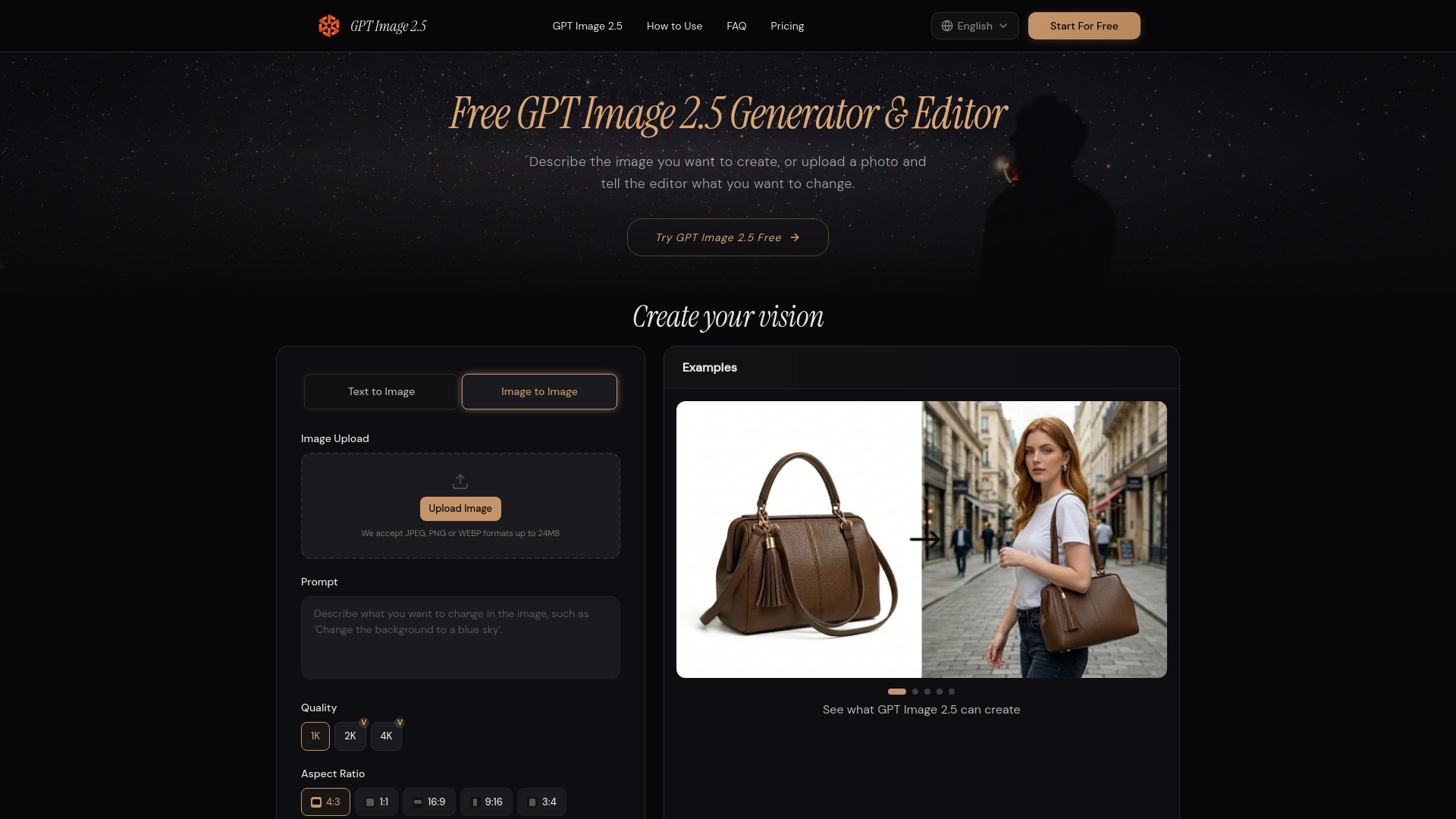
GPT Image 2.5 is an AI image generator and photo editor that turns written descriptions into images and changes existing photos through text instructions. It allows users to create a scene from scratch, replace a background, adjust lighting, or explore a different visual style without describing a series of manual editing steps. The tool is designed to build from an idea or a reference photo, with improved subject retention that helps familiar people, pets, and products remain recognizable in new settings, and more consistent editing that lets users develop a preferred result through a series of focused changes.
How to use Free GPT Image 2.5 – AI Image Generator & Photo Editor
- Start with text or a photo: Open the GPT Image 2.5 generator and choose your starting point. Describe a new image if you are beginning from an idea, or upload a photo when you want to change an existing scene.
- Describe the result you want: Tell GPT Image 2.5 what should appear, where it belongs, and how it should look. For an edit, name the requested change and the details you want to keep, such as the subject, framing, or clothing.
- Generate and review: Run your prompt in the GPT Image 2.5 generator. Review the subject, composition, and text once before continuing. Choose the version closest to your goal as the reference for your next change.
- Refine one detail: Use GPT Image 2.5 to build on that version. Ask for softer lighting, a different background, or revised object placement. Continue with the latest generated image as your reference so each edit starts from the creative choices you want to retain.
Features of Free GPT Image 2.5 – AI Image Generator & Photo Editor
- Generate Images from Text: Turn a subject, setting, and style into a new image. Describe a quiet interior, a colorful illustration, or a product scene without starting from an existing photo. Specify composition and lighting when those details matter to the result.
- Edit Photos with Written Instructions: Upload a photo and name the part to change. GPT Image 2.5 follows focused editing instructions more reliably, helping retain surrounding details while you replace an object or revise its appearance. Specify the subject and composition you want to keep.
- Replace Backgrounds and Build New Scenes: Place a familiar subject in a studio, on a tabletop, or outdoors. Improved reference fidelity helps carry distinctive features into the new setting. Describe the surface, perspective, and surrounding light to give the scene a coherent look.
- Adjust Lighting, Color, and Style: Warmer light, richer textures, and more natural shading can change how a scene feels. Describe the lighting, palette, and subject details that matter to your intended look.
- Add or Revise Text in Images: Ask GPT Image 2.5 to place a short headline in a poster or change wording in an existing image. Include the exact words and their intended position. Review spelling, spacing, and legibility in the output before using the image in a finished design.
Use Cases of Free GPT Image 2.5 – AI Image Generator & Photo Editor
- Product Images and Background Variations: Develop seasonal product visuals from one reference photo. Place a bottle on pale stone for a skincare promotion, then try a warm bathroom setting. Specify its shape, label, and proportions as details to retain across the variations.
- Posters and Social Graphics: Describe an event, color palette, and headline position. Build a central illustration with space for the event name, then adapt the wording and colors for another announcement.
- Photo Restyling: Turn a personal photo into an illustrated invitation, a painted portrait, or a stylized profile picture. GPT Image 2.5 can reinterpret the scene while better retaining distinctive subject features. Describe the final use and preferred style, including the expression or pose you want to retain.
- Character and Story Concepts: Develop a character for a story, from a cafe scene to an outdoor adventure. Use the same character reference and specify the hairstyle, outfit, and illustration style that tie your scenes together.
- Targeted Changes to Existing Images: Refresh an existing promotional image when the product, season, or message changes. Replace a prop or revise one part of the scene while retaining the overall composition. Build from the preferred version when you need another adjustment for the campaign.
FAQ
How do I use GPT Image 2.5?
Start the GPT Image 2.5 generator with a description for a new scene, or upload a photo when a specific subject matters. Name the result you want, generate an image, then use your preferred version as the reference for further changes. You can refine the lighting or background without restating the entire scene.
Can GPT Image 2.5 edit an existing photo?
Yes. Upload a photo to GPT Image 2.5 and describe the change. Its more precise editing helps retain surrounding details while you replace a background, change an object, or adjust lighting. Name what should stay. Exact preservation is not guaranteed, so check important product or subject details and lettering before publishing.
What can I create with ChatGPT Images 2.5?
ChatGPT Images 2.5 supports product visuals, illustrations, posters, social graphics, and photo edits. You can explore these tasks with the GPT Image 2.5 generator here using your own brief or reference photo. For a series, reuse a reference and specify the colors, subject details, and visual style that should connect the images.
Is GPT Image 2.5 free to try?
Yes. You can try GPT Image 2.5 with the free option offered on this page. Check the available allowance and current plan details before starting, especially if you want to generate several versions. Use the free option to explore a prompt or photo edit, then decide whether the available usage meets your needs. Free access does not imply unlimited use.
Can GPT Image 2.5 add or change text in an image?
Yes. GPT Image 2.5 can add a headline, revise wording, or arrange text within an image. Put the exact copy in quotation marks and describe its placement and relative size. These instructions also apply to ChatGPT Images 2.5. For a poster, separate the main title from dates and supporting details in your prompt.
What image files should I upload?
For GPT Image 2.5 editing, choose a clear source image with the subject and relevant details visible. The upload control shows which file types and sizes are accepted. Avoid starting from a heavily blurred or tightly cropped photo when the edit depends on a label, face, or object that is difficult to see.
Is this an official OpenAI website?
No. This is an independent website providing access to GPT Image 2.5, not an official OpenAI website. It is not affiliated with or endorsed by OpenAI. Use the account and usage information on this site to understand how access works here; another service’s plan does not describe the allowance offered on this page.