

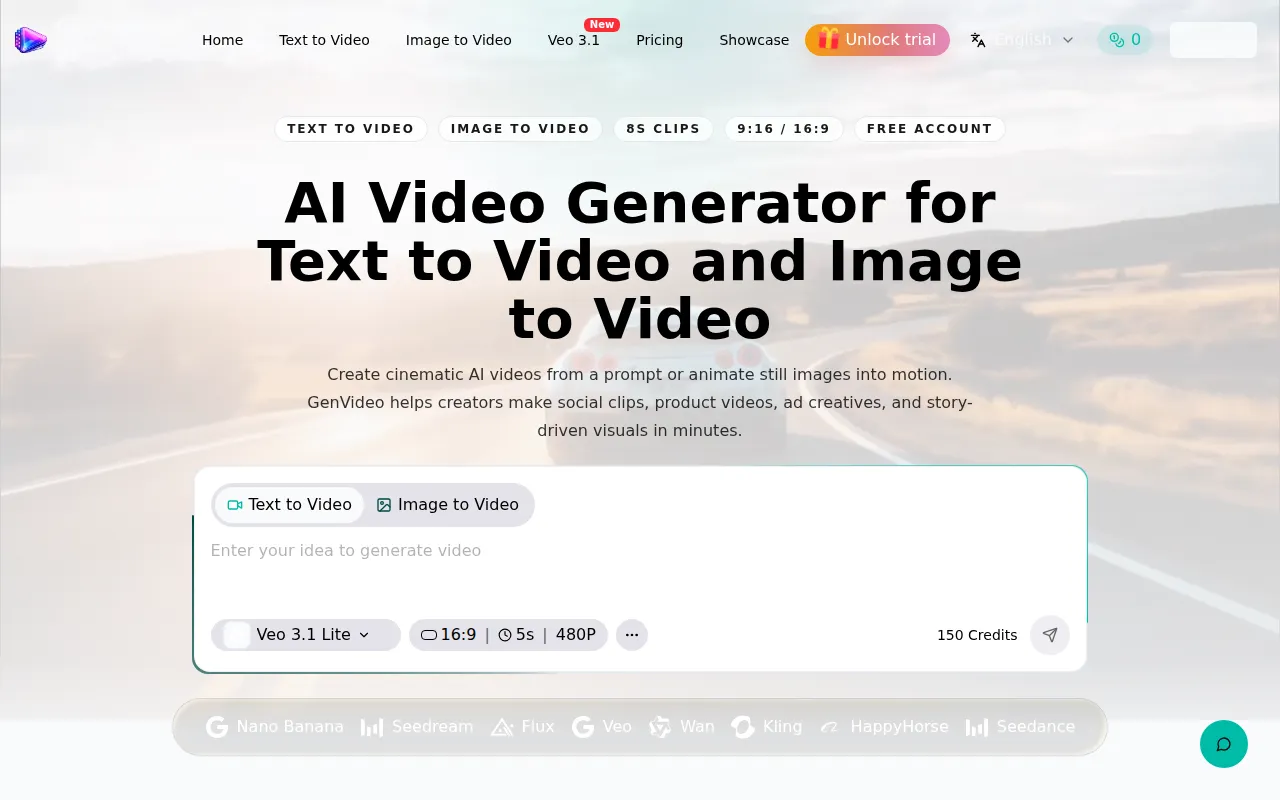
What is GenVideo AI
GenVideo AI is an AI video generator that transforms text prompts and images into cinematic short-form videos. It enables the creation of social clips, product videos, ad creatives, and story-driven visuals.
How to use GenVideo AI
- Text to Video: Enter your idea or prompt into the text area. Select the desired model and video settings (aspect ratio, duration, resolution). Click the generate button.
- Image to Video: Upload a reference image. Describe the motion you want. The tool will turn the static frame into a dynamic video.
Features of GenVideo AI
- Text-to-video generation from prompts.
- Image-to-video generation to animate still images.
- Supports various aspect ratios (e.g., 9:16, 16:9).
- Generates short clips (e.g., 8s, 5s).
- Offers multiple AI video models (Veo 3.1, Seedream, Kling, Wan, HappyHorse, etc.).
- Provides video previews and examples.
- Allows reuse of prompt directions from examples.
- Offers commercial-friendly workflows for product videos, ads, and client work.
- Clear credit usage display before generation.
- Visible generation status updates.
- Downloadable video results.
Use Cases of GenVideo AI
- Product Video Ads: Create clips for landing pages, e-commerce listings, and paid social tests from product shots or packaging images.
- Image to Video Animation: Animate product shots, portraits, character images, or campaign visuals for stronger continuity.
- TikTok, Reels, and Shorts: Generate vertical clips with clear motion and social-first pacing.
- Cinematic Story Scenes: Create mood pieces, concept scenes, and story-driven shots from text prompts for cinematic direction.
- Campaign Visuals: Develop creative assets for marketing campaigns.
- Social Media Content: Produce engaging short-form videos for social platforms.
FAQ
- Should I start with text-to-video or image-to-video? Start with text-to-video to create scenes from scratch. Start with image-to-video when you have a reference image and want controlled motion, camera movement, or visual continuity.
- How long does video generation take? Most videos take about 1-3 minutes to generate, depending on the model, queue, and settings. Keep the page open until the result is ready.
- Can I use GenVideo videos for product videos, ads, and client work? Yes. Paid plans are built for commercial workflows, including product demos, ad creatives, landing page videos, and social campaigns.
- How do free users try video generation? Free users can check in daily to progress toward a limited video trial. Full video generation and higher usage require purchased video credits.
- How many credits does one video use? Credit cost depends on the selected workflow, model, duration, resolution, and queue options. GenVideo shows the required credits before you submit a generation.
- What can I create with text-to-video? Text-to-video works well for ad concepts, product stories, cinematic scenes, explainer clips, and social-first video ideas. Describe the subject, camera movement, motion, mood, and aspect ratio, then generate a short clip from your prompt.
- What can I create with image-to-video? Image-to-video is ideal when you already have a product shot, character image, concept art, or campaign visual. Upload the image, describe the motion you want, and turn a static frame into a dynamic video with stronger continuity.
- Can I upgrade when I need more credits or faster queue priority? Yes. You can move to a higher plan when you need more monthly credits, more concurrent video generations, or better queue priority.
- Which workflows and models does GenVideo support? GenVideo focuses on text-to-video, image-to-video, and reusable video examples. Model availability can vary by tool page and plan.