Newsletter
Join the Community
Subscribe to our newsletter for the latest news and updates

Online tool for creating negative images by inverting colors
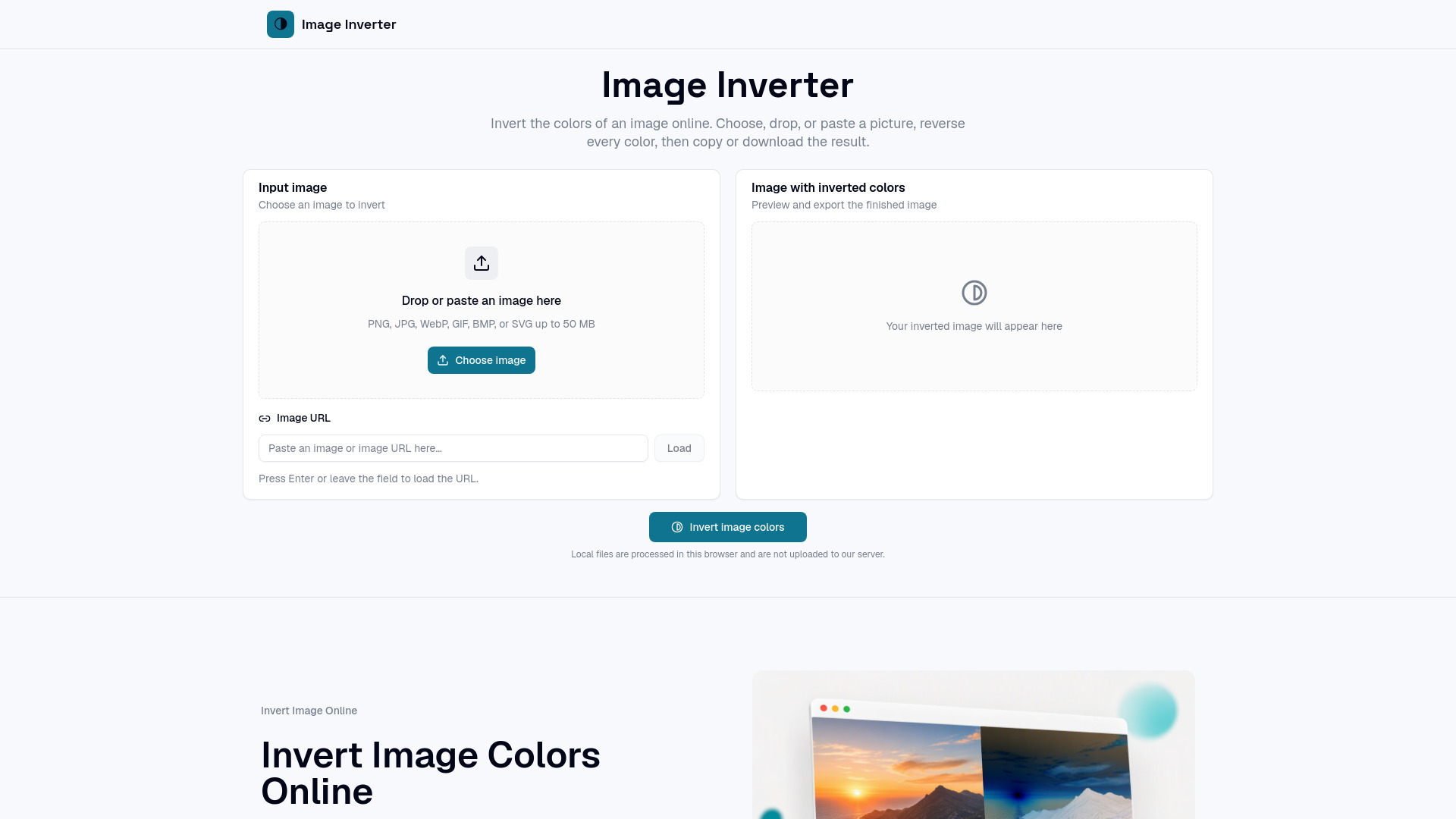
ImageInverter is an online tool that inverts the colors of an image, turning every color into its opposite while preserving the original dimensions and transparency. It operates entirely in the browser, allowing users to upload, paste, or load an image by URL, then preview and download the negative image in formats like PNG, JPG, BMP, or WebP.
How do I invert an image? Choose, drop, or paste the image in the tool above, then select Invert Image Colors. ImageInverter creates the opposite color for every visible pixel and displays the result beside the original.
How do I invert colors on a picture? Load the picture and press the invert button. The operation reverses the RGB channels: a channel value of 20 becomes 235, while the alpha channel stays unchanged so transparent areas remain transparent.
Can I invert a photo online without uploading it? Yes. A photo chosen from your device is decoded and processed locally in the browser. ImageInverter does not send that local file to this site's server, and the result remains on your device unless you decide to download or copy it.
Can I paste an image or image URL? Yes. Paste image data from the clipboard while the tool is focused, or paste an HTTP or HTTPS image URL into the URL field. Remote images must be downloadable before the browser can process their pixels.
What file types does ImageInverter support? The input accepts image formats your browser can decode, commonly PNG, JPEG, WebP, GIF, BMP, and SVG. Available output buttons are detected in your browser and normally include PNG, JPG, and WebP, with BMP shown when supported.
Does color inversion remove transparency? No. ImageInverter changes red, green, and blue values but does not modify alpha values. A transparent PNG keeps its transparent regions in the PNG or WebP result. JPG cannot store transparency.
Is an inverted image the same as grayscale? No. Grayscale removes hue and represents brightness with neutral tones. An inverted image keeps color relationships but replaces every channel with its opposite value, producing cyan from red, magenta from green, and yellow from blue.
Can I reverse the result? Yes. Download the inverted image, load it into ImageInverter, and run the same operation again. Applying exact color inversion twice returns the original RGB values, although saving to a lossy JPG can introduce small compression differences.