
What is Magi AI
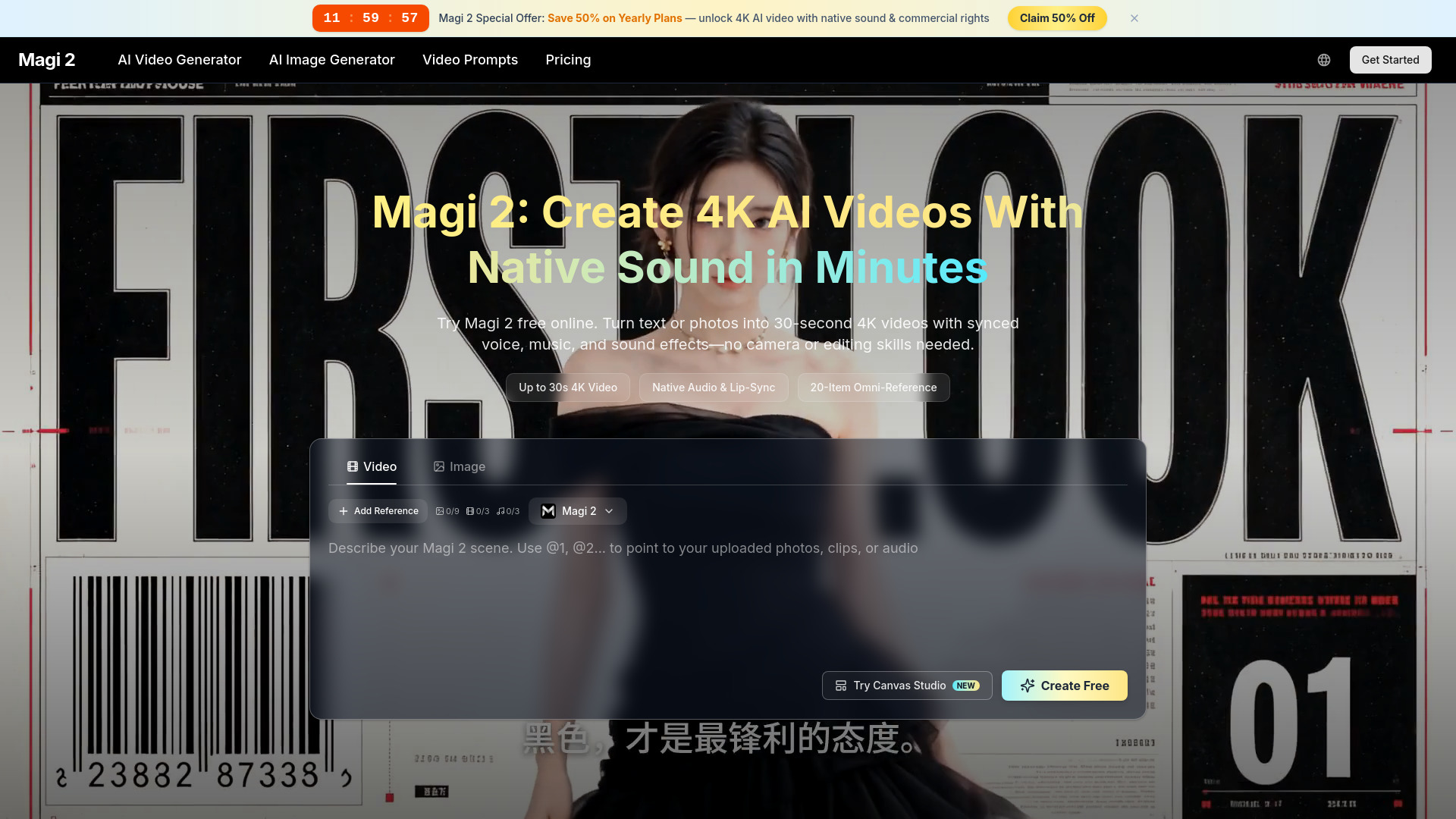
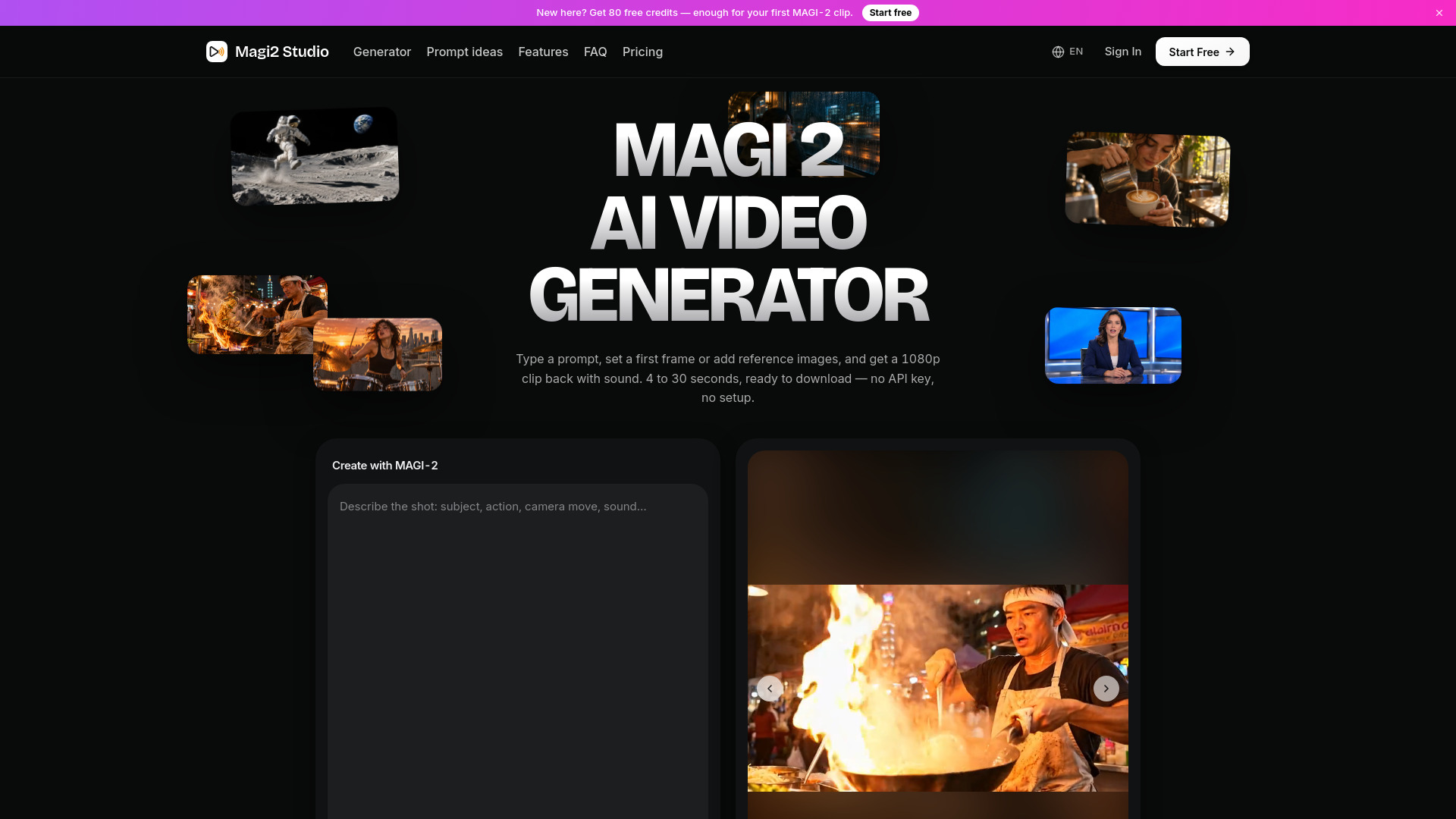
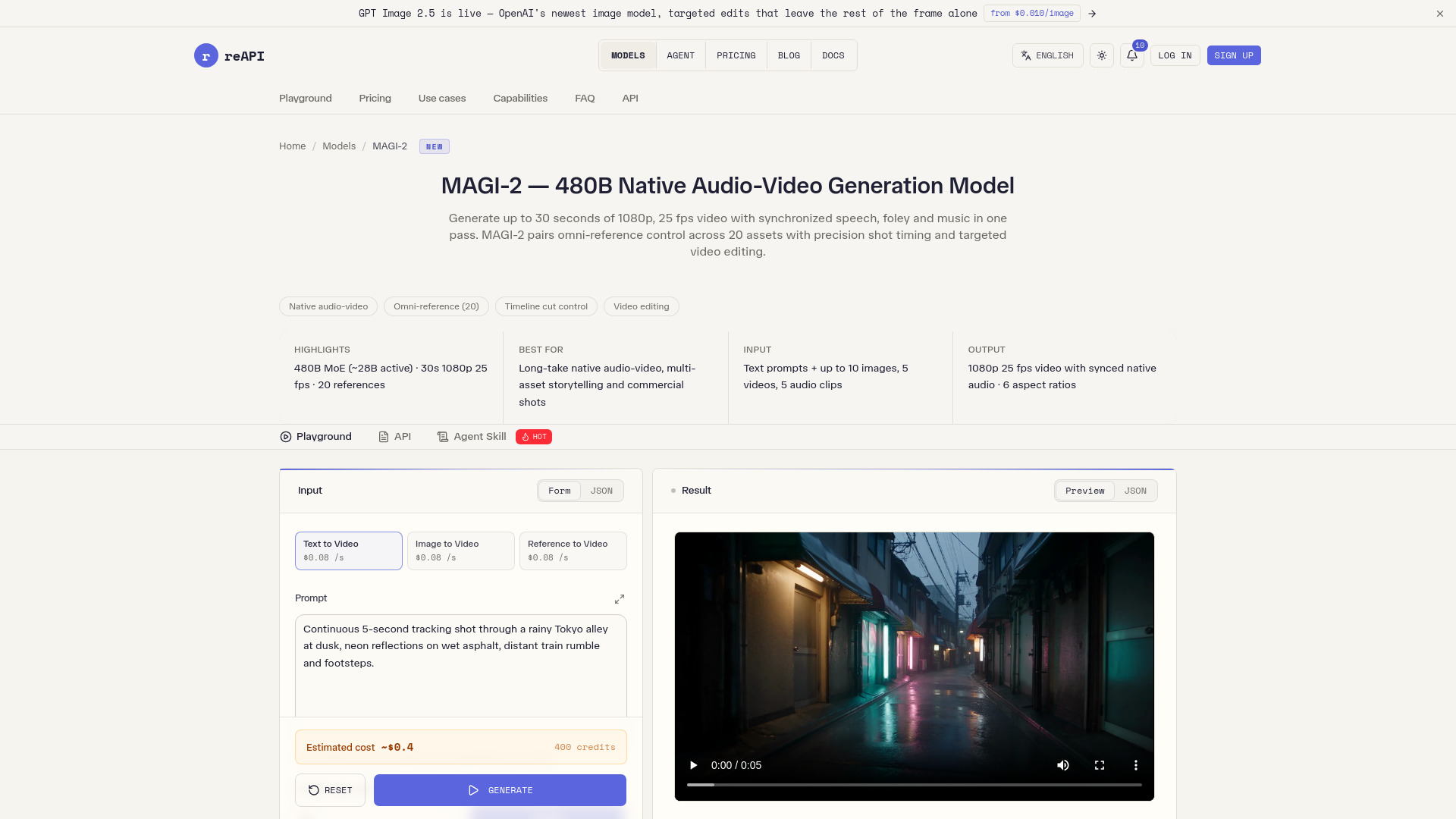
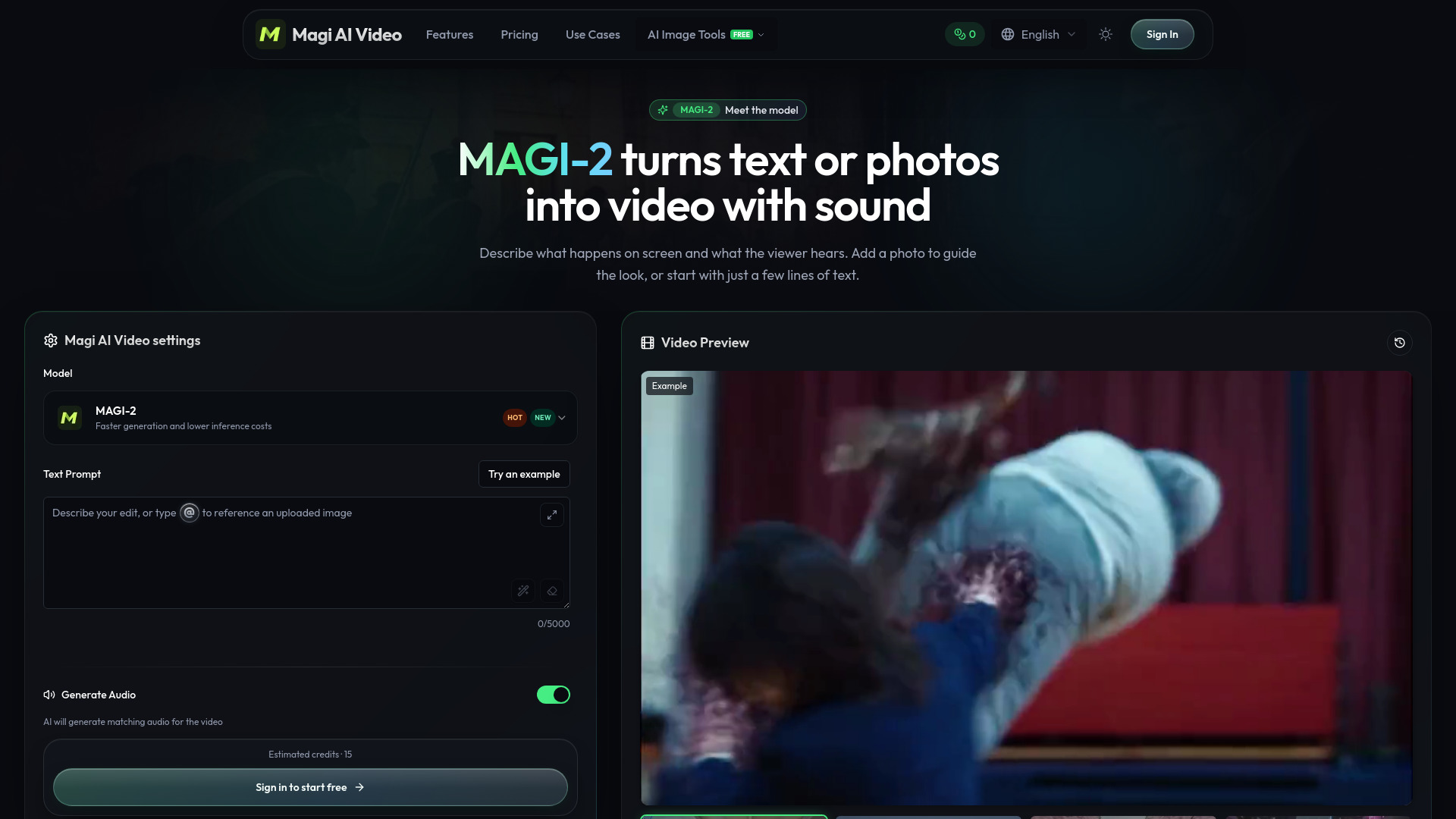
Magi AI Video is an AI-powered video generation tool that creates videos with synchronized audio from text descriptions or reference images. It is built on Sand.ai's MAGI-2 model, which generates a scene and its soundtrack together from a written direction, with optional images, footage, or audio to guide the result.
How to use Magi AI
- Describe one action: Write what the subject does. For dialogue, put the exact words in quotation marks.
- Add a reference if you have one: A product photo can guide the shape and finish. A video can show how you want the camera to move.
- Choose your output and generate: Set the length, aspect ratio, and sound. Check the credit estimate, then generate and preview the clip.
Features of Magi AI
- Text-to-video with audio: Describe what happens on screen and what the viewer hears. Add a photo to guide the look, or start with just a few lines of text.
- Multimodal references: Combine images, video, and audio to guide the generation.
- First/last frames: Control the opening and ending composition.
- Reference image upload: Support for JPG, PNG, WebP, GIF, BMP, TIFF, HEIC, HEIF (up to 9 images, max 30MB each).
- Reference videos: MP4/MOV, up to 3 videos; 2–15s each and 15s total (max 200MB per file).
- Reference audio: MP3/WAV, up to 3 audio files; 2–15s each and 15s total.
- Generate audio toggle: AI will generate matching audio for the video.
- Video resolution: Choose between 480p and 720p.
- Duration: Adjustable from 4s to 15s.
- Videos per batch: Generate 1, 2, or 3 videos at once.
- Aspect ratios: 16:9, 9:16, 1:1, 4:3, 3:4, 21:9.
- Camera and timing control: Direct camera movements and cuts (e.g., start wide, move closer, ask for a cut when the actor puts down the keys).
- Dialogue and sound: Write exact lines, who says it, and what else is heard. A station announcement can continue after the camera leaves the speaker.
- References and edits: Use a photo for the coat and a clip for the walk. To revise footage, describe the change and the details to keep.
Use Cases of Magi AI
- Directing camera and timing: Specify camera movements and cuts, such as starting wide, moving closer, and cutting when an actor puts down keys.
- Creating dialogue and sound: Write exact lines, assign speakers, and include ambient sounds like station announcements that continue off-screen.
- Using references for consistency: Guide the look with a photo for a costume or a clip for a walk. Revise footage by describing changes while keeping details like the actor's walk and camera angle.
- Editing specific details: Upload a clip and describe both the change and what to keep (e.g., change a grey jacket to a red raincoat while preserving the actor's walk and camera angle).
Pricing
Magi AI Video uses a credit-based system. The cost of a video depends on the clip length and resolution. You can set these parameters to see the credit cost before generating. For a single project, you can buy a one-time credit pack. For regular use, compare the credits included in each subscription plan. Refund requests are eligible within 7 days of purchase if less than 50% of credits have been used. Failed generations are automatically refunded credits.
FAQ
Can I change just one detail in a video?
Yes. Upload the clip and describe both the change and what to keep. For example, ask for a red raincoat in place of a grey jacket while keeping the actor’s walk and the camera angle.
How do I save a clip from Magi AI Video?
When the task completes, open the preview and use the download control. Play the saved file to check the picture and sound before including it in your final edit.
What will my video cost?
Set the clip length and resolution to see the credit cost. Change either setting to compare versions before generating. For a single project, buy a one-time credit pack. For regular shoots, compare the credits included in each subscription.
If a generation fails
Credits are returned once the task is marked as failed. If the balance hasn’t updated, contact support with the task details.
What is the Magi AI Video refund policy?
Refund requests are eligible within 7 days of purchase when less than 50 percent of the credits have been used. Contact support with the order details. A failed generation credit return is separate from a purchase refund.