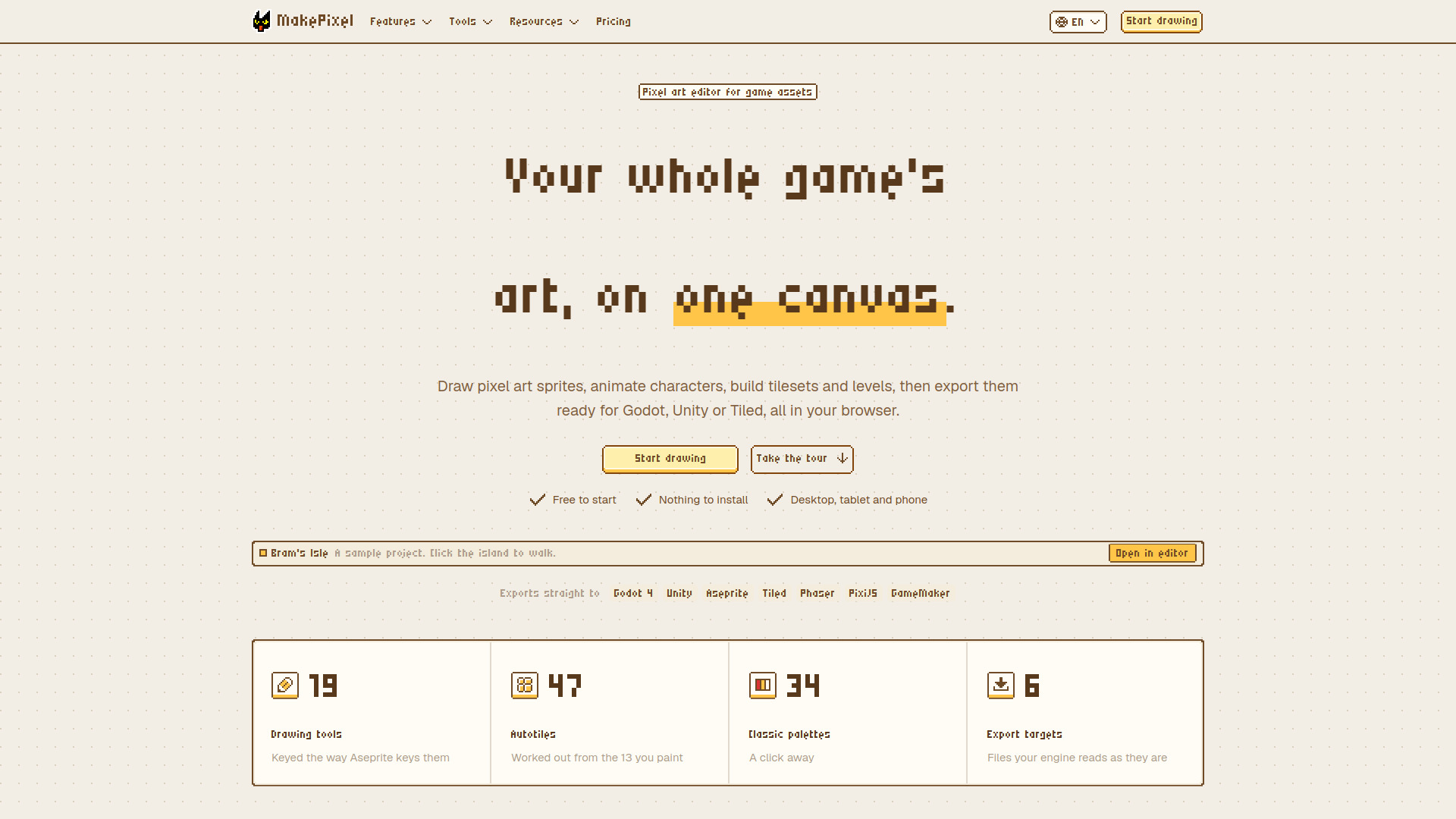
What is MakePixel
MakePixel is a browser-based pixel art editor for game assets. It lets you draw sprites, animate characters, and build tilesets on one canvas, then export directly to Godot, Unity, or Aseprite. The editor runs in your browser on desktop, tablet, or phone, and works offline. It is an editor first: every tool works without AI, but it also includes an AI pixel art generator that creates editable pixel art from a text description.
How to use MakePixel
- Open MakePixel in your web browser—no installation required.
- Start drawing with familiar tools and keyboard shortcuts (Aseprite's default shortcuts are supported).
- Create sprites, animations, tilesets, and maps on the same canvas.
- Use the AI generator by describing a character, item, or scene to get pixel art with at most 16 colours that you can edit pixel by pixel.
- Convert images to pixel art by dropping in a photo, sketch, or upscaled sprite, then choose the size and number of colours.
- Export your work to Godot 4 (SpriteFrames, AnimatedSprite2D scenes, TileSets with terrains), Unity (via Aseprite Importer), or as sprite sheets with JSON for Phaser, PixiJS, and GameMaker. Tilesets also export for Tiled.
- Build levels directly in MakePixel by painting maps with your tilesets, using terrain that joins edges automatically and object layers for everything else. Export maps for Tiled (TMX or TMJ), as a Godot scene, or as a PNG.
Features of MakePixel
- Sprite editor with drawing tools and Aseprite-compatible shortcuts.
- Animation timeline with frames, onion skin, tags, and timing controls.
- Sprite sheet packing and slicing.
- Tileset and map editor with autotile generation and terrain joining.
- Palette management: classic palettes, Lospec links, and custom palettes with one-click remapping.
- AI pixel art generator: describe a character, item, or scene to get editable pixel art (1 credit per picture).
- Image-to-pixel-art converter: turn photos or sketches into pixel art with adjustable size and colour count; includes background removal and pixel grid detection.
- Aseprite file support: open and save .aseprite files with layers, cels, tags, palette, blend modes, and opacity intact.
- Export to Godot 4, Unity, Phaser, PixiJS, GameMaker, and Tiled.
- Touch layout for tablets and phones: pinch to zoom, two-finger tap to undo, three-finger tap to redo, long-press eyedropper.
- Offline support: work saves as you draw, offline changes sync when back online, and deleted items can be restored from trash.
- Sprite size up to 1024 × 1024 pixels with 1,024 frames, 64 layers, and 256 colours; projects hold up to 5,000 items.
Use Cases of MakePixel
- Game developers creating sprites, animations, and tilesets for 2D games.
- Artists who want to convert photos or sketches into pixel art.
- Level designers building maps with autotiling and exporting to Tiled or Godot.
- Teams or individuals needing to open and edit .aseprite files in the browser without installing software.
- Users who want to generate pixel art from text descriptions and then refine it manually.
- Mobile or tablet users drawing pixel art on the go with touch controls.
Pricing
MakePixel is free to use with 50 MB of storage. Drawing, animation, tilesets, characters, linked assets, and all import/export formats are included for free. A Pro plan adds version history, scene playtesting, a connection for AI coding tools, more colour themes, and 10 GB of storage. AI pixel art generation costs 1 credit per picture.
FAQ
Is MakePixel free?
Yes. Drawing, animation, tilesets, characters, linked assets, and every import and export format are free, with 50 MB of storage. Pro adds version history, scene playtesting, the connection for AI coding tools, more colour themes, and 10 GB of storage.
Do I need to install anything?
No. MakePixel runs in the browser on a desktop, tablet, or phone, and it keeps working when your connection drops.
Can I use it alongside Aseprite?
Yes. MakePixel opens .aseprite files and saves them back with layers, cels, tags, palette, blend modes, and opacity intact, and the editor uses Aseprite's default shortcuts.
Which game engines does it export to?
Godot 4 (SpriteFrames, AnimatedSprite2D scenes, and TileSets with terrains), Unity through its Aseprite Importer, and sprite sheets with JSON for Phaser, PixiJS, and GameMaker. Tilesets also export for Tiled.
Can I build levels in it, or do I still need Tiled?
You can build them here. Paint maps with your own tilesets on the same canvas, with terrain that joins its edges for you and object layers for everything else, then export the map for Tiled (TMX or TMJ), as a Godot scene, or as a PNG.
Is this an AI art generator?
No. MakePixel is an editor first: every tool works without AI, and the image-to-pixel-art converter runs in your browser. When you want a head start, describe a character, an item, or a scene and AI makes pixel art you can edit pixel by pixel, for 1 credit a picture.
Can it turn a picture into pixel art?
Yes, for free. Drop in a photo, a sketch, or an upscaled sprite, pick the size and how many colours, and it becomes a pixel image you can keep editing. It can remove the background, and in upscaled or AI-made pixel art it finds the pixel grid, so every pixel lands on one cell.
How big can a sprite or a project get?
A sprite can be up to 1024 × 1024 pixels with 1,024 frames, 64 layers, and 256 colours. A project holds up to 5,000 items.
What happens if I close the tab or go offline?
Your work saves as you draw. Changes made offline are kept on your device and sent when you are back online, and deleted items can be restored from the trash.
Does it work on a tablet or a phone?
Yes. There is a touch layout with pinch to zoom, two-finger tap to undo, three-finger tap to redo, and a long-press eyedropper.