
What is Veo Omni
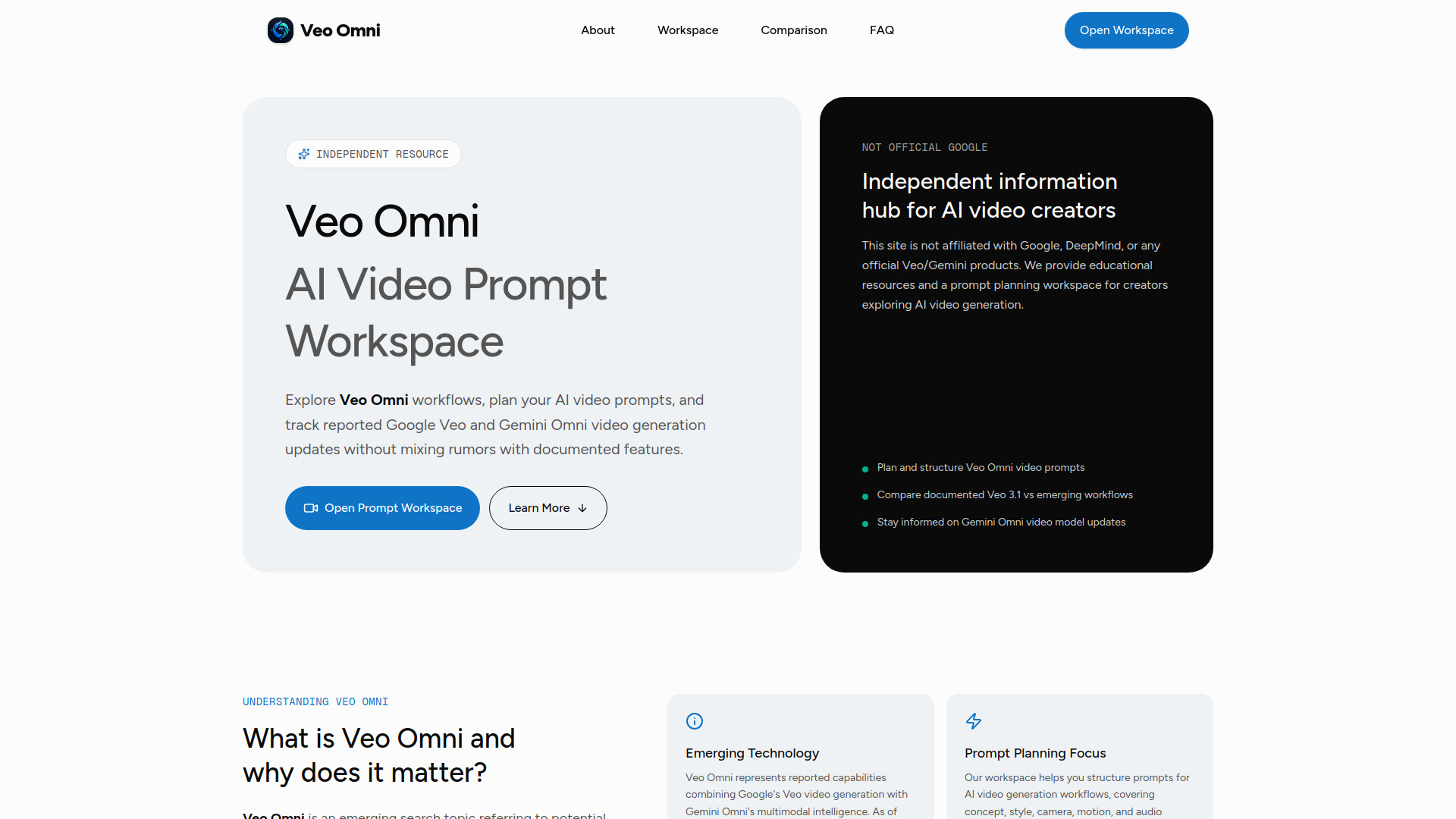
Veo Omni is an independent AI video generator workspace and status guide. It is an emerging search topic related to reported Gemini and Veo video workflows, not an official Google product. The site serves as an information hub for creators exploring AI video generation and provides a server-side workspace for various video tasks.
How to use Veo Omni
- Access the Generator: Navigate to the "Generator" section or click "Open Generator" to access the video task submission interface.
- Select Task Type: Choose between "Text to video," "Image to video," or "Video edit" tasks.
- Enter Prompt: Describe your desired video content in the prompt area, including scene details, action, camera movement, subject consistency, lighting, style, and edit intent.
- Upload References (Optional): For audio-based tasks, upload MP3 or WAV files as references.
- Configure Settings: Select the desired model (Veo Omni), aspect ratio, resolution, and duration (4-15 seconds).
- Generate Video: Initiate the video creation process by clicking "Create video task."
- Monitor Status: Track the progress and view output URLs in the "Task monitor" or "History" sections.
Features of Veo Omni
- Independent AI Video Workspace: A platform for creators to experiment with AI video generation.
- Prompt Planning Workspace: Facilitates the creation and refinement of video prompts.
- Status Guide: Provides updates and information on reported Veo Omni developments.
- Text-to-Video Generation: Create videos from textual descriptions.
- Image-to-Video Generation: Generate videos based on input images.
- Hosted Video Editing: Allows for editing of video content with prompt control.
- Server-Side Task Submission: Video generation tasks are processed on the server.
- Customizable Settings: Options for model, aspect ratio, resolution, and duration.
- Audio Reference Upload: Support for MP3 and WAV files.
- Prompt Engineering Guidance: Tips and patterns for effective prompt creation.
- Veo 3.1 Comparison: Information to differentiate between documented and reported features.
Use Cases of Veo Omni
- Content Creation: Generate short video clips for social media, marketing, or personal projects.
- Prototyping: Quickly visualize concepts for video projects.
- Learning AI Video: Understand prompt engineering and AI video generation workflows.
- Exploring Emerging Tech: Stay updated on the latest advancements in AI video, including potential Gemini Omni integrations.
FAQ
What is Veo Omni? Veo Omni is an emerging search topic around reported Gemini and Veo video workflows. This site is an independent information hub and AI video workspace, not an official Google product.
Is veoomni.ai an official Google, Gemini, DeepMind, or Veo product? No. veoomni.ai is independent and is not affiliated with, endorsed by, or operated by Google, DeepMind, Gemini, or Veo. The site keeps documented Veo 3.1 capabilities separate from reported Veo Omni information.
Does the workspace generate videos? Yes. The workspace submits server-side video tasks for text-to-video, image-to-video, and hosted video editing when the production provider key is configured.
Why compare Veo Omni with Veo 3.1? Creators searching for Veo Omni often want to know what is confirmed now and what is still reported. Veo 3.1 is the documented path, while Veo Omni terminology is useful for tracking expected multimodal video workflows and prompt patterns.
What is the best way to use this Veo Omni guide? Start with the status notes, submit a video task in the workspace, then use the prompt patterns section to refine camera movement, subject consistency, audio direction, and safety constraints.