LogoTopAIHubs
icon of VideoSlimmer - Smart Video Compressor

VideoSlimmer - Smart Video Compressor

Private online video compressor that processes files locally without uploading them.

Introduction

What is VideoSlimmer - Smart Video Compressor

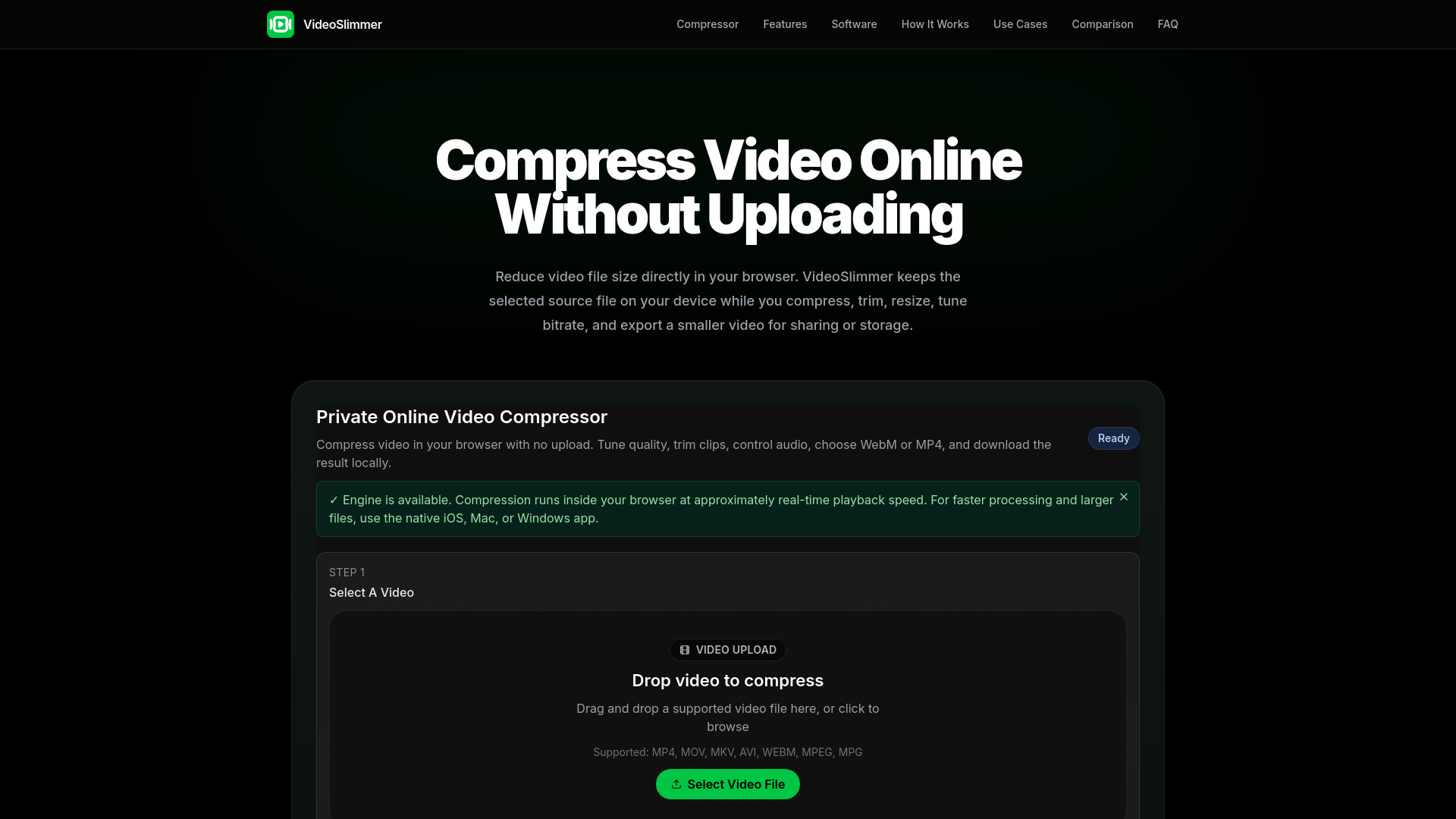
VideoSlimmer is a private online video compressor that processes files locally within your browser without uploading them. It allows users to reduce video file sizes directly in their browser, keeping the source file on their device.
How to use VideoSlimmer - Smart Video Compressor
  1. Select A Video: Drag and drop a supported video file into the compressor or click to browse your device. The video will be loaded locally.
  2. Compression Settings: Choose a quality preset (High, Medium, Low) or customize settings such as resolution, video bitrate, audio bitrate, FPS, and keyframe interval. You can also trim the video by setting a start and end time.
  3. Export: Select the output format (WebM or MP4) and choose whether to keep the audio track or remove it. Then, start the compression process.
  4. Download: Once compression is complete, download the smaller video file directly to your device.
Features of VideoSlimmer - Smart Video Compressor
  • No-Upload Browser Compression: Processes videos locally in the browser without uploading to a server.
  • Fine-Tune Quality and Size: Adjust resolution, video bitrate, audio bitrate, FPS, and keyframe interval.
  • Trim Before Export: Cut the start or end of a video clip during compression.
  • Choose Output Formats: Export in WebM (via WebCodecs) or MP4 (via FFmpeg WASM).
  • Remove Audio: Option to remove the audio track for further size reduction.
  • Local Control: Preview, compare size reduction, and download directly from the device.
  • App Integration: Native apps for iOS, Mac, and Windows are available for larger offline workflows.
Use Cases of VideoSlimmer - Smart Video Compressor
  • Save Storage: Reduce large video files from phones, cameras, or screen recordings to save device storage.
  • Faster Sharing and Uploads: Create smaller videos for easier sending via messaging apps, email, or uploading to social media platforms.
  • Privacy for Sensitive Footage: Compress client or work videos without uploading them to third-party servers.
  • Prepare for Demos: Create lightweight silent videos for presentations or demos.
FAQ
  • Is VideoSlimmer a free online video compressor? Yes. The browser compressor is free and available online without an account. Native apps are also available for more extensive offline workflows.
  • Are my videos uploaded to your server? No. The online compressor processes videos locally in your browser, and the source video stays on your device.
  • How do I compress a video without losing too much quality? Start with a medium or high preset, and adjust resolution or bitrate as needed. Lowering these settings too much can impact quality.
  • Can I compress MP4, MOV, WebM, or screen recordings? Yes, VideoSlimmer supports common formats like MP4, MOV, M4V, MKV, AVI, WebM, and MPEG, depending on browser and codec support.
  • Can I export the compressed video as MP4? Yes, MP4 export is available through FFmpeg WASM mode.
  • Is there a file size limit for the online compressor? The practical limit depends on your device's memory, browser, video length, and codec. For very large files, native apps are recommended.
  • Why does compression speed vary? Speed depends on your device, browser, video length, codec, output format, and compression settings, as processing occurs locally.
  • When should I use the iOS, Mac, or Windows app? Use the native apps for batch compression, larger files, repeated offline workflows, or when more convenient access to local files is needed.

Information

Newsletter

Join the Community

Subscribe to our newsletter for the latest news and updates