Newsletter
Join the Community
Subscribe to our newsletter for the latest news and updates

AI image generation and editing with prompts and visual references
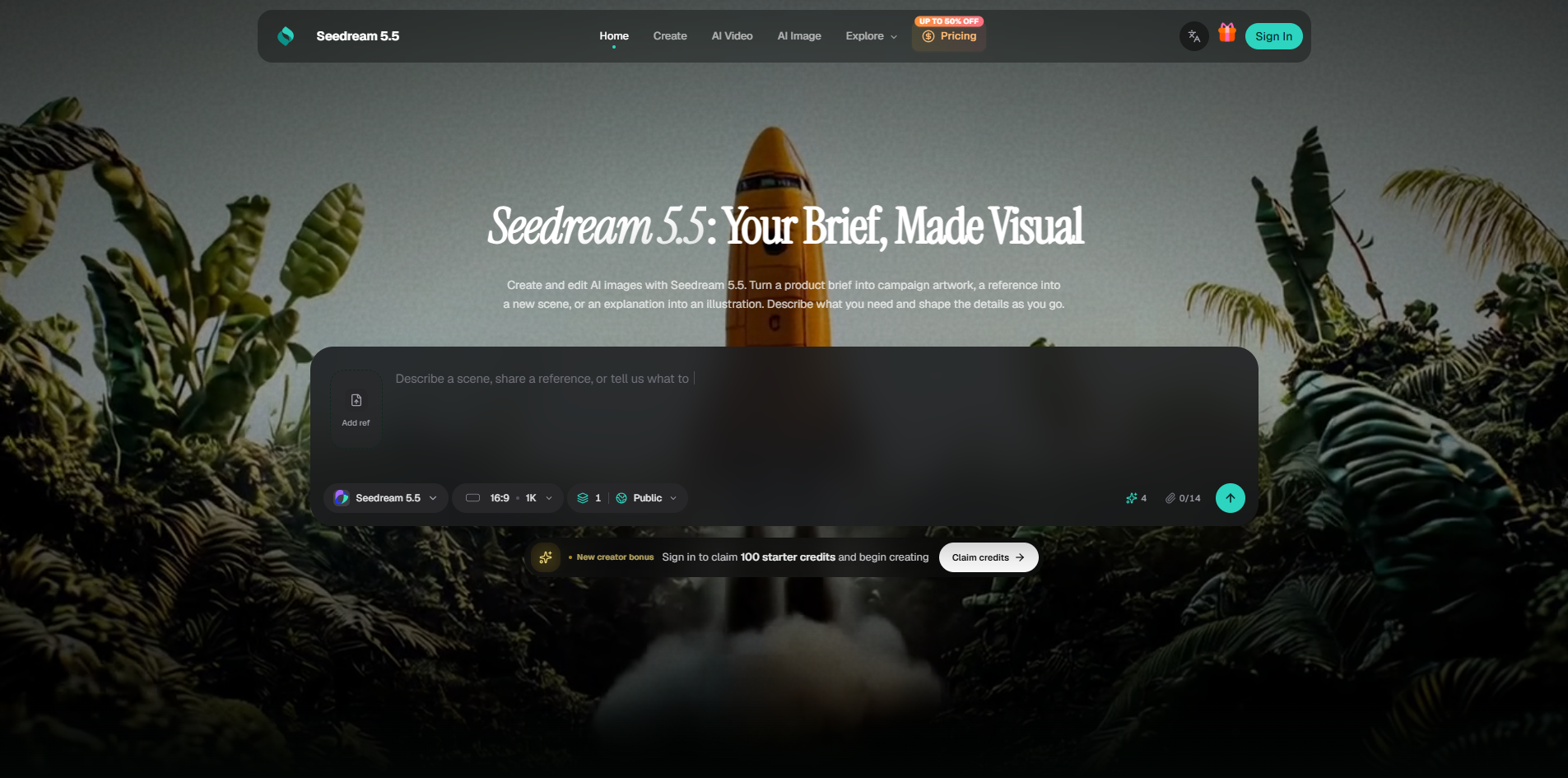
Seedream 5.5 is an AI-powered image generation and editing tool that transforms written prompts and visual references into product visuals, campaign posters, illustrations, and clear visual explanations. It allows users to create and edit images by describing what they need and shaping details through iterative requests.
Seedream 5.5 offers flexible pricing options: choose a subscription for recurring creative work or a credit pack for a defined set of images and video tasks. Monthly plans are available, with up to 50% off. New users can sign in to claim 100 starter credits.
What should I include in a prompt?
Include the subject, setting, style, and intended use. Then add details that distinguish the image: light direction, material, or space for a heading. For example, a product banner brief might specify a bottle on the right and an open background on the left.
Which reference image should I choose?
Choose a view that clearly shows the features you want to use. For a product, include its silhouette and label; for a room, show the layout. When using several images, explain their roles and say which reference takes priority if styles differ.
How can I develop a consistent campaign?
Reuse the same product or character references, palette, and style description in separate requests. Give each image its own purpose while repeating the details that connect the campaign. Compare results together before choosing the final set.
How do I put a headline inside an image?
Supply the exact text in quotation marks and describe its position, size, and relationship to the subject. Keep the main message distinct from supporting copy. For Chinese and English versions, provide the wording for each and check the rendered text at its intended viewing size.
Can I change just the background of a photo?
Upload the photo and describe the replacement setting. Identify the subject and details you want to keep, then specify the new background and lighting. If you want another revision, use the version with the subject details you prefer as your starting point.
How should I prepare information for a diagram?
Provide the facts, labels, and relationships you want to show. Specify the sequence of stages or the categories to compare. Review the finished graphic against your notes, including the direction of arrows and the placement of each label.
How do I start, and where can I compare plans?
Prepare your brief in the homepage prompt box, then sign in to begin generating. Check the selected model, settings, and credit charge before submitting. Use the plans link to compare available options.