
What is FLUX 3 Video
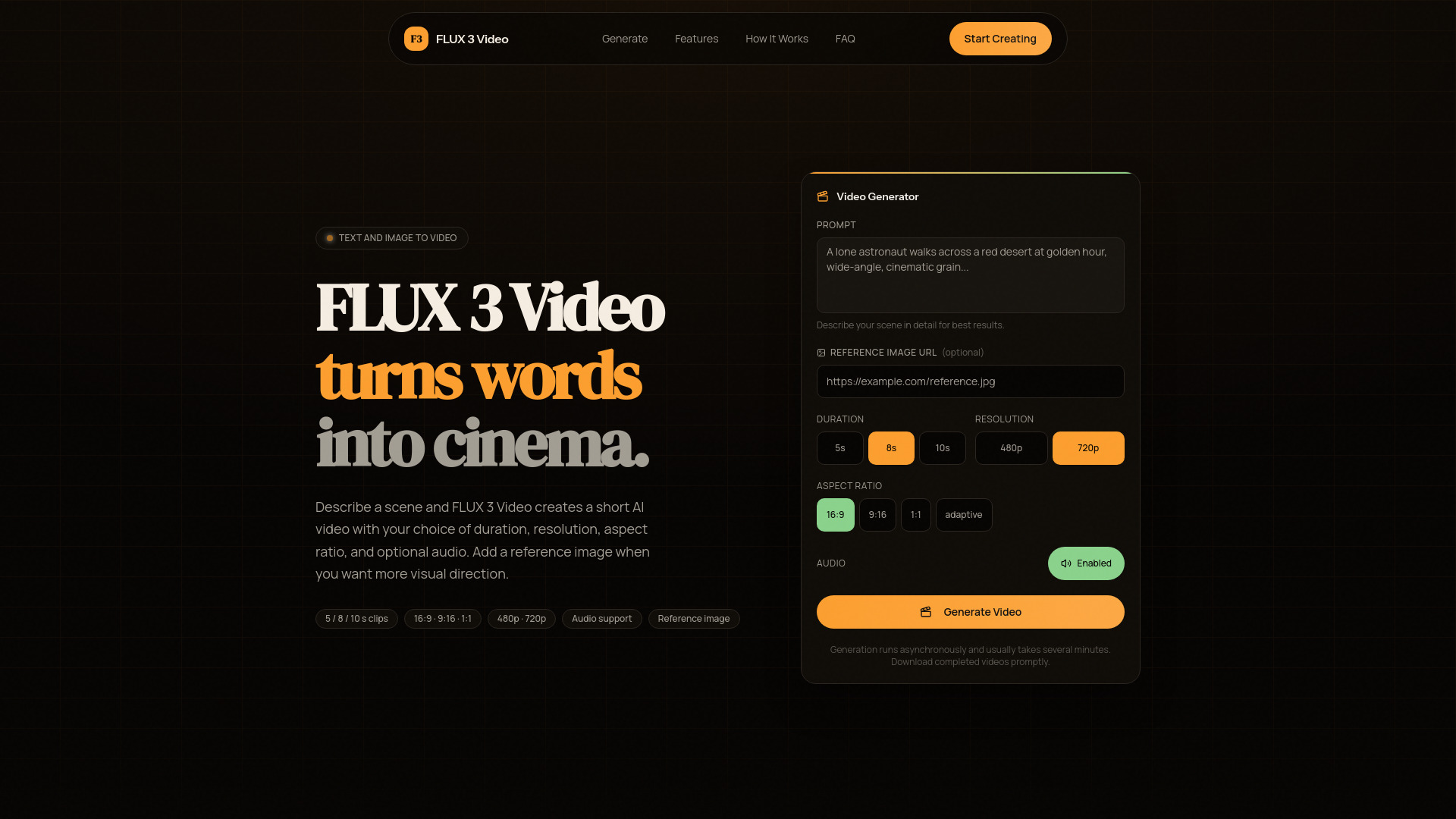
FLUX 3 Video is a browser-based AI video creator that turns a written scene description into a short video. It can optionally use a reference image to guide the result. Users can configure duration, aspect ratio, resolution, and synchronized audio.
How to use FLUX 3 Video
- Write a detailed prompt describing the scene, camera angle, lighting, subject, mood, and pacing.
- Configure the output: choose a 5, 8, or 10-second duration, select an aspect ratio (16:9, 9:16, 1:1, or adaptive), pick a resolution (480p or 720p), and decide whether to generate audio. Optionally upload a reference image (JPEG, PNG, WebP, or GIF, up to 4MB) to anchor the visual style.
- Submit the request and the page will automatically check until the video is ready.
- Preview or download the completed clip.
Features of FLUX 3 Video
- Text-to-video generation: describe a scene, setting, mood, camera movement, and lighting.
- Reference image input: upload an image to guide subject, composition, color, or visual direction.
- Flexible aspect ratios: 16:9, 9:16, 1:1, or adaptive.
- Configurable duration & resolution: 5, 8, or 10-second clips at 480p or 720p.
- Optional audio generation: add ambient sound or music.
- Background processing: jobs continue server-side with automatic status checking.
Use Cases of FLUX 3 Video
- Landscape scenes: e.g., "Golden-hour drone shot over a misty mountain valley, slow push-in, anamorphic flare" (16:9, 10s, 720p).
- Portrait scenes: e.g., "Close-up of rain drops on a window, neon city lights blurred behind, slow motion" (9:16, 8s, 720p).
- Square scenes: e.g., "Abstract ink diffusing in water, macro lens, obsidian black background" (1:1, 5s, 480p).
- Futuristic scenes: e.g., "Futuristic city street at night, holographic signage, light rain, shallow depth of field" (16:9, 8s, 720p).
FAQ
What is FLUX 3 Video? FLUX 3 Video is a browser-based AI video creator. It turns a written scene description into a short video and can use an optional reference image to guide the result.
How do I create a video with FLUX 3 Video? Write a detailed prompt, choose a 5, 8, or 10-second duration, select an aspect ratio and resolution, then decide whether to generate audio. Submit the request and the page will keep checking until the video is ready.
Can FLUX 3 Video animate a reference image? Yes. Upload one JPEG, PNG, WebP, or GIF image up to 4MB. The image can guide the subject, composition, color, or visual direction of the generated clip.
Which video formats does FLUX 3 Video support? The current generator offers 480p and 720p output, 5, 8, or 10-second clips, and 16:9, 9:16, 1:1, or adaptive aspect ratios. Optional synchronized audio is also available.
How long does video generation take? Video generation runs asynchronously and usually takes several minutes. Timing varies with demand, resolution, duration, references, and the complexity of the request.
What should I avoid putting in a prompt or reference image? Do not submit confidential information, private media, unlawful content, or material you do not have permission to use. Prompts and uploaded references are processed by external services to create the requested output.