What is Seedream 5.5 AI
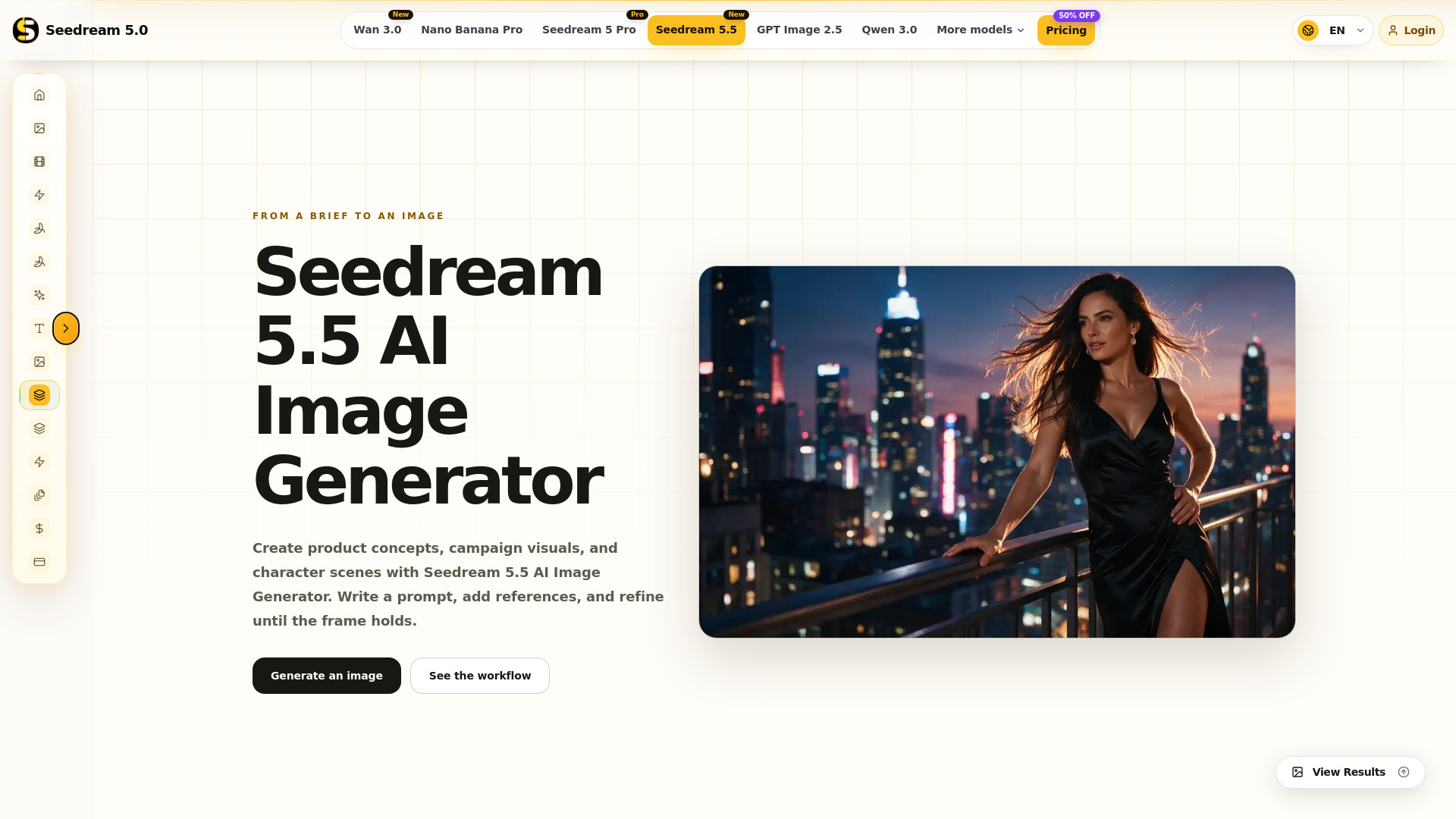
Seedream 5.5 AI is an image creation workspace designed to turn written briefs into visual frames. It allows users to generate images from text prompts or reference images, with a focus on evaluating and refining composition, lighting, and material details. The tool is built for creators with a visual brief, such as creative directors, filmmakers, designers, marketers, and concept artists, enabling them to move from an open brief to a visual direction that is easier to assess.
How to use Seedream 5.5 AI
- Write your prompt: Describe the subject, setting, composition, light, and the most important detail. Use prompt examples as a starting point and remove adjectives that do not affect visual decisions.
- Set up the image: Choose between text-to-image or image-to-image mode. Add reference images if pose, material, or brand color must be preserved. Select an aspect ratio and output setting that matches the intended use.
- Generate and review: Follow any sign-in prompts, review the credit cost, and start generation. Check subject hierarchy, framing, light direction, and unwanted details before rewriting the prompt.
- Refine and save: Change one instruction at a time—such as silhouette, light spill, or background clutter—and generate again if needed. Download the result that best matches the brief.
Features of Seedream 5.5 AI
- Text-to-image and image-to-image generation: Create images from text alone or use reference images to lock pose, material, or brand color.
- Prompt guidance: Provides prompt examples and a structured approach to writing effective prompts.
- Visual planning framework: Helps users make five key decisions: establish subject hierarchy, direct the scene, shape light and color, choose a camera language, and plan the refinement pass.
- Task-specific language: Offers prompt starting points for cinematic keyframes, advertising visuals, product concepts, and character worlds.
- Refinement workflow: Encourages changing one visual decision at a time to maintain concept coherence.
- Aspect ratio and output settings: Allows selection of aspect ratio and generation mode to match the intended use.
- Credit cost display: Shows the credit cost for selected settings before generation.
Use Cases of Seedream 5.5 AI
- Cinematic keyframes: Block the decisive story beat, character position, environmental scale, lens feeling, and emotional light. Ensure the frame reads the beat in three seconds.
- Advertising visuals: Prioritize a single message, product or person, controlled negative space, and a recognizable campaign palette. Protect copy space early.
- Product concept scenes: Describe material, silhouette, surface behavior, environment, and visual proof that makes the concept believable—such as brushed metal edges, glass refraction, or wet terrain catching light.
- Character and world development: Connect costume logic, posture, props, architecture, climate, and social context into one consistent world. Repeat material motifs across wardrobe, tools, and buildings.
Pricing
Seedream 5.5 AI uses a credit-based system. The generator displays the credit cost for your selected settings before generation. A pricing page is available with plans and a 50% off promotion.
FAQ
What can I do with Seedream 5.5?
Use Seedream 5.5 AI Image Generator to create from text or work with reference images. You also get prompt examples and a step-by-step workflow for reviewing composition, light, and material before the next pass.
How do I start generating an image?
Open the generator, enter a prompt that names subject and scene first, choose a generation mode and available settings, then follow the account prompts and start generation.
How should I write a Seedream 5.5 prompt?
Start with the subject and scene, then describe composition, lighting, color, and material. Give the most important detail a clear priority so competing accents do not flatten the hierarchy.
Can I use reference images?
Choose image-to-image mode and add your reference images in the generator. Explain what should stay—pose, logo color, costume logic—and what should change in the prompt.
Where can I check account and credit requirements?
The generator shows account prompts and the credit cost for your selected settings. Review those details before starting a generation so format and mode choices stay intentional.
How do I improve a result?
Keep the parts that work, identify the main problem, and change one prompt instruction at a time. Compare the next result for framing, light, or clutter before making further changes.